
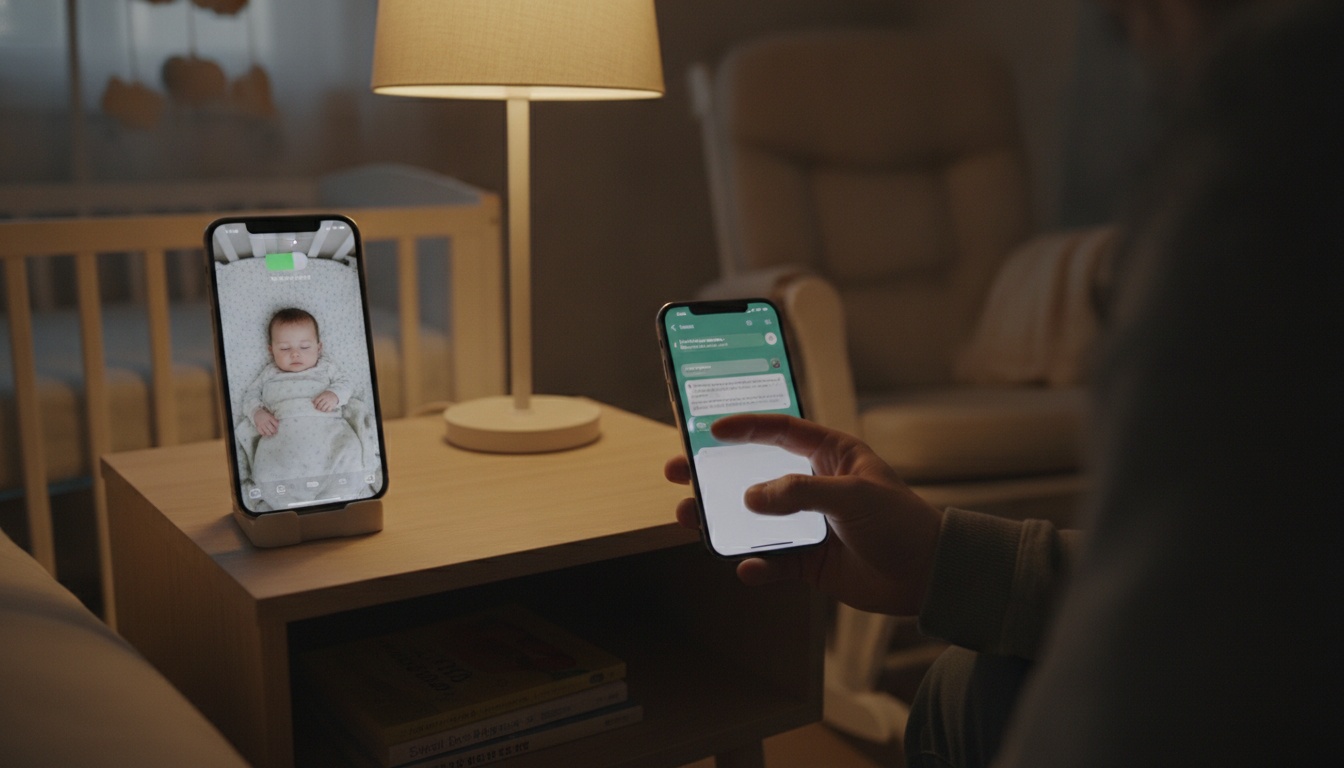
1. Quick Start: 3 Ways to Use Your iPhone as a Baby Monitor
Before going deep on setup, here's what each method actually delivers:
| Method | Cost | Setup Time | Video | Audio | Best For |
|---|---|---|---|---|---|
| Live Listen + AirPods | $0 (AirPods required) | 2 min | No | Yes | Quick audio check, one room away |
| Third-party app (two iPhones) | Free tier + paid Pro | 5–10 min | Yes | Yes | Full monitoring setup |
| BabyRadar (two iPhones) | Free tier + Pro ($9.99/mo, $59.99/yr) | 5 min | Yes (on-demand Watch Live) | Yes | Privacy-focused smart monitoring |
No dedicated hardware purchase is required for any of these.
An older iPhone works as the nursery device. iOS 14 or later is the minimum for Live Listen, and anything older than an iPhone X will struggle with sustained video streaming — more on that below.
"Baby monitor" means different things to different parents. One-way audio tells you when the baby stirs. Two-way video lets you see and speak to them. Know which you actually need before spending anything.
2. Method 1: Live Listen — Free Audio Monitoring in 2 Minutes (No App Required)
Live Listen was designed as an accessibility tool, originally meant to help people with hearing difficulties use their iPhone as a remote microphone feeding into AirPods. Parents figured out it doubles as a one-way audio transmitter. Apple never blocked it.
Here's the baby monitor setup:
- On the nursery iPhone, go to Settings → Control Center → Add "Hearing"
- Place the nursery iPhone in the room (plugged in — battery drain is significant)
- On the parent iPhone, put on AirPods and open Control Center
- Tap the ear icon, select Live Listen, choose the nursery iPhone
Audio streams in near-real-time to your AirPods.
Guided Access locks the nursery iPhone to a single screen so it can't be accidentally dismissed — a useful layer of parental monitoring control. Enable it under Settings → Accessibility → Guided Access, then triple-click the side button when the app is open. Screen Time adds another layer: you can restrict the nursery device from launching anything else entirely.
The honest limitations: audio only, no video, no motion detection, no recording. Bluetooth range is roughly 10 meters in open air. Through a single drywall wall, audio starts dropping noticeably before that. Two walls, even thin ones, push it to the edge of reliable. In a standard house, that's one room away comfortably, two rooms if you're lucky and the walls are hollow.
That's the ceiling. Work within it.
This isn't a primary overnight monitor. It's a "I'm cooking dinner and want to hear if she wakes up" monitor. Keep the nursery iPhone plugged in — sustained Bluetooth at screen-off drains a battery faster than most parents expect.
For audio monitoring within a room or two, that's everything you need. If you want a more complete setup — or you're already using AirPods and want to understand the full compatibility picture — here's how Method 2 works.
3. Method 2: iPhone + AirPods — The Full Setup Guide
The iPhone AirPods baby monitor combination works better than most people realize, but the compatibility requirements matter.
AirPods 2nd generation and later, AirPods Pro (all generations), and AirPods Max support Live Listen. First-generation AirPods do not. iOS 14 or later is required on both devices — these steps reflect iOS 18 behavior as of mid-2026. If Apple updates the Control Center layout in a future iOS release, the Hearing icon location may shift. Check Settings → Accessibility → Hearing if you can't find it in Control Center.
Step-by-step:
- Pair AirPods to the parent iPhone as normal
- On the nursery iPhone: Settings → Control Center → Add Hearing icon
- Place nursery iPhone face-up in the room, plugged into power
- On parent iPhone: put in AirPods, swipe to Control Center, tap the ear icon
- Tap Live Listen — you'll see the nursery iPhone listed as the audio source
- Audio streams immediately
Older hardware drifts. An iPhone X running this overnight will sometimes drop the connection or run warm. iPhone 12 and newer handle sustained Live Listen noticeably better. If you're using an older device as the nursery unit, audio-only Live Listen is the safer choice over video streaming.
Troubleshooting Live Listen Connectivity Issues
Connection drops are the most common complaint. The fix is almost always the same: toggle Bluetooth off and back on from the parent device's Control Center. If that doesn't work, un-pair and re-pair the AirPods.
Audio cutting out intermittently usually means the nursery iPhone moved out of reliable Bluetooth range. The screen being off does not interrupt audio — that's a feature, not a bug. Keep the nursery iPhone plugged in and the screen can stay dark all night.
4. Method 3: Video Monitoring Apps — See Your Baby and Speak to Them From Anywhere ($4–5/Month)
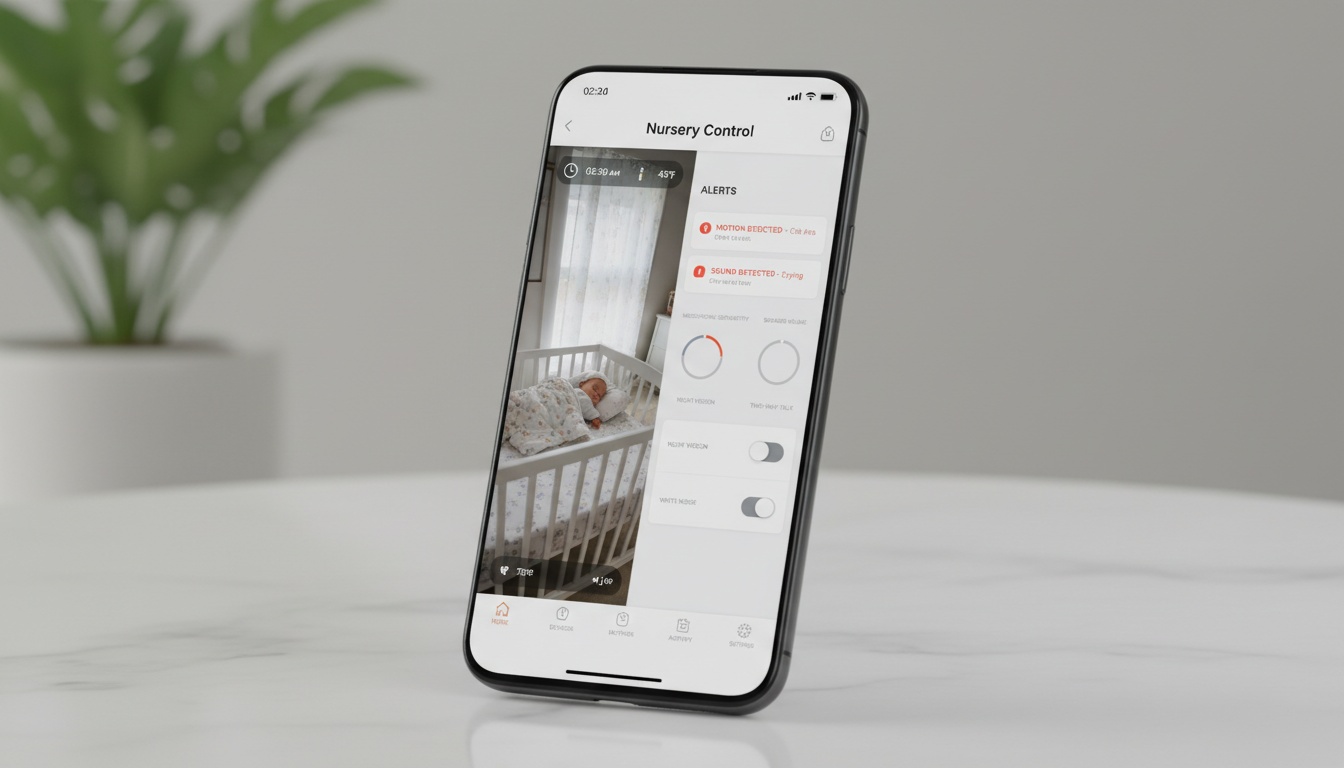
Live Listen can't show you whether your baby kicked off her blanket at 2 a.m. That's what the app-based iOS baby monitor setup is for: real-time video monitoring, motion detection, and two-way communication between devices.
Bibino Baby Monitor streams live video to the parent device over Wi-Fi or mobile data — it works on both, which matters when you're not home. (Over 500K downloads and a 4.7-star rating on the App Store — verify current figures in the App Store listing.) Features include:
- Automatic low-light visibility enhancement
- Motion detection with photo or video preview alerts
- Two-way video and microphone
- Lullaby library
- Monitoring of up to four babies simultaneously
One account connects across iOS, Android, macOS, Windows, and Linux, so the parent viewer doesn't have to be an iPhone.
Annie Baby Monitor covers similar ground: HD video and audio monitoring, cry and sound detection, motion detection, and support for up to four babies at once. Annie also sends Apple Watch notifications — when motion triggers an alert, it hits your wrist. That's useful when you're cooking, showering, or doing anything where you can't stare at your phone. The closest iPhone-based setup gets to smart home-style monitoring without dedicated hardware.
Cloud Baby Monitor offers HD video and includes lullabies and night light controls, though it routes more through cloud infrastructure than the other two. Worth reading their privacy policy if that matters to you.
| App | Free Features | Paid Cost | Video | Two-Way Audio | Motion Detection | Night Vision |
|---|---|---|---|---|---|---|
| Bibino | Limited sessions | ~$5/month (check App Store for current pricing) | Yes | Yes | Yes | Yes (auto-enhance) |
| Annie Baby Monitor | Basic monitoring | ~$4/month (check App Store for current pricing) | Yes | Yes | Yes | Check app listing |
| Cloud Baby Monitor | HD video | Paid tier available | Yes | Yes | Yes | Yes |
| BabyRadar | Free tier available | Pro subscription | Yes (on-demand Watch Live) | No | No | No |
Ready to test video monitoring? Bibino and Annie Baby Monitor both offer free tiers — no payment required to start.
Most free app tiers limit session length or throttle video quality after a threshold. That's workable for occasional daytime monitoring. For overnight primary monitoring, budget $4–5/month if you want persistent video without interruptions.
Free vs. Paid: The Honest Cost Breakdown
Live Listen setup costs $0 if you own AirPods. Third-party apps have free tiers with session limits; paid Pro tiers run $4–5/month — check App Store listings for current pricing.
For a healthy baby past the newborn stage, Live Listen covers most daytime monitoring needs. The $4–5/month apps earn their cost if you need video, motion detection, or the ability to check in from outside the house. If you're only monitoring during naps while you're home, Live Listen is genuinely sufficient.
Bibino, Annie, Cloud Baby Monitor, and BabyRadar all offer free tiers plus paid upgrades. The specifics differ — BabyRadar’s free tier includes cry detection and push alerts with no time limit, and Pro ($9.99/mo or $59.99/yr) adds live listen, on-demand Watch Live video, crib photo viewing, and audio playback. Anyone positioning one of these as "the free option" is usually describing a limited free tier, not the full product for free.
The contrarian take: for a healthy, full-term baby past the newborn stage, the free Live Listen setup is enough for most monitoring situations. I'd argue the $5/month app subscriptions are mostly sold to parental anxiety, not parental need. That's not a knock on the apps — they're genuinely good — it's a knock on how they're marketed.
One thing neither the free nor paid options handle well: smart home integration.
Smart Home Integration: What Works and What Doesn't
Neither Live Listen nor most baby monitor apps integrate directly with HomeKit, Alexa, or Google Home as of mid-2026. Annie Baby Monitor sends Apple Watch notifications as the closest workaround — useful, but not the same as a native smart home trigger.
If HomeKit integration matters to you, a dedicated camera like the Eufy Baby Monitor integrates natively. It's a real trade-off worth factoring in before committing to an iPhone-only setup.
iPhone Model Compatibility at a Glance
Not every iPhone handles sustained monitoring equally. Here's a practical breakdown:
| iPhone Model | Live Listen | Video Streaming | Notes |
|---|---|---|---|
| iPhone 8 / X | Works | Not recommended | Overheats during sustained video; audio-only preferred |
| iPhone 11 | Works | Acceptable | Handles overnight audio well; video workable |
| iPhone 12 / 13 | Works | Good | Reliable for sustained Live Listen and video |
| iPhone 14 / 15 / 16 | Works | Excellent | No thermal issues in normal conditions |
An iPhone 11 or newer handles overnight video without thermal issues under normal conditions. Older hardware — iPhone 8 or X — is better reserved for audio-only monitoring.
5. Security, Privacy, and Legal Considerations
Wi-Fi baby monitor setups vary significantly in how they handle your video. Some apps route footage through cloud servers for processing and storage. Others use more direct connections between devices.
When I checked Bibino's policy in mid-2026, video processing happened on-device with optional cloud backup. Opt out of cloud backup in settings if you want footage to stay local.
For any app you use, search the privacy policy for "cloud storage" and "third-party data sharing." Vague language about "service improvement" often means footage is going somewhere you didn't intend.
A practical step: put the nursery iPhone on a separate guest Wi-Fi network. This isolates it from your main home network — if the app has a security vulnerability, it can't reach your other devices.
Here's a quick comparison of how the main methods handle your data:
| Method | Data Storage | Cloud Dependency |
|---|---|---|
| Live Listen | On-device only | None |
| Bibino | On-device + optional cloud backup | Low (opt-out available) |
| Annie / Cloud Baby Monitor | Check privacy policy | Varies |
On the legal side: in most U.S. states, recording video in your own home is legal. Audio recording laws vary by state. It's advisable to consult your state's specific laws and to inform any caregivers that monitoring is in place. The ethical standard is straightforward: tell your caregiver a camera is present. It's the right thing to do.
6. Why Your iPhone Baby Monitor Drops Connection (And How to Fix It)
Battery drain is the number-one reason iPhone baby monitor setups fail overnight. The nursery device must be plugged in. A short cable with a wall mount keeps the phone positioned correctly and powered indefinitely.
Lag over 2 seconds usually means Wi-Fi congestion — I saw this consistently when the nursery iPhone was on 2.4GHz competing with a smart TV and three other devices.
Switching to 5GHz dropped lag from roughly 3 seconds to under 1 second. Move the nursery iPhone to the 5GHz band on your router; it's faster and less crowded. Keep the router within a reasonable distance of the nursery iPhone, and be aware that thick concrete or brick walls will hurt performance more than distance alone.
iPhone X and older models may run warm during sustained video streaming. On those devices, stick with audio-only monitoring.
What Happens When the Nursery iPhone Gets a Call
This is a real failure mode most guides skip. If the nursery iPhone receives a phone call or FaceTime request during a monitoring session, most apps will drop the monitoring connection. The incoming call takes priority at the OS level.
The fix: enable Do Not Disturb on the nursery device, or use Screen Time to block incoming calls entirely during monitoring hours. Test this before the first overnight session.
Network Setup for Reliable Remote Monitoring
- Use 5GHz Wi-Fi for the nursery device
- Keep router within a reasonable distance of the nursery iPhone
- Avoid placing the nursery iPhone behind thick concrete or brick walls
- Test upload speed before the first overnight session — 2 Mbps upload is a reasonable minimum for stable video, though this can vary by app
- Enable Do Not Disturb on the nursery iPhone to prevent call interruptions
The Redundancy Strategy Most Parents Skip
Run Live Listen as an audio backup while your video app handles video and motion alerts. If the app drops at 2 a.m., you still hear the baby. Two redundant systems, zero extra cost.
To set this up:
- Start your video monitoring app on both iPhones as normal
- On the parent iPhone, activate Live Listen through Control Center
- Both systems run simultaneously — the app handles video and motion alerts; Live Listen handles raw audio backup
If the app drops, your AirPods keep streaming. It's the kind of belt-and-suspenders setup that feels unnecessary until the one night it isn't.
Apple's official Live Listen documentation
7. Frequently Asked Questions
Can I use an old iPhone as a baby monitor? Yes. iOS 14 or later is required for Live Listen. For video streaming apps, iPhone X and older work better for audio-only — sustained video streaming on older hardware causes overheating and connection drops. An iPhone 11 or newer is the practical minimum for reliable overnight video.
Do both iPhones need to be on the same Wi-Fi? For most apps, yes — that's a standard connectivity requirement. Bibino works over cellular data as well as Wi-Fi, which means the parent device can be away from home. Cellular use drains data; check your plan before relying on it.
Is an iPhone baby monitor as reliable as a dedicated monitor? For daytime and occasional monitoring, yes. iPhone setups depend on a network connection, while some dedicated monitors use DECT radio or other technologies that don't require Wi-Fi. Consider your specific needs and preferences when choosing a monitoring method.
Can I use an iPad instead of an iPhone? Yes — the iPad baby monitor setup is identical to the iPhone setup for every method covered here. The larger screen is a genuine advantage on the parent side.
Can I connect an iPhone baby monitor to my smart home system? Not natively. Neither Live Listen nor most baby monitor apps integrate directly with HomeKit, Alexa, or Google Home as of mid-2026. Annie Baby Monitor sends Apple Watch notifications as the closest workaround. For native HomeKit integration, consider a dedicated camera like the Eufy Baby Monitor.
---
8. Key Takeaways
- Live Listen + AirPods is a zero-cost audio monitor that works right now, no app download required
- Third-party apps like Bibino and Annie Baby Monitor add real-time video, motion detection, and two-way communication — most have free tiers with session limits and paid Pro tiers around $4–5/month (check App Store listings for current pricing)
- Always plug in the nursery iPhone; battery drain will end your monitoring session otherwise
- Use 5GHz Wi-Fi and test upload speed before the first overnight session
- Enable Do Not Disturb on the nursery iPhone — incoming calls will drop your monitoring connection
- Run Live Listen as an audio backup alongside your video app; if the app drops at 2 a.m., you still hear the baby
- iPhone setups depend on a network connection; consider your preferences and needs when choosing a monitoring method
- Tell caregivers a camera is present; it's both the ethical and legally prudent move
Which method fits your situation? Enable Live Listen for zero-cost audio monitoring — it takes under 2 minutes. Try Bibino or Annie Baby Monitor if you need a continuous video feed and motion detection; both let you test the free tier before committing. Download BabyRadar if privacy matters most: cry detection runs on-device, each alert arrives with a crib photo, and you can watch live on demand from any room.