
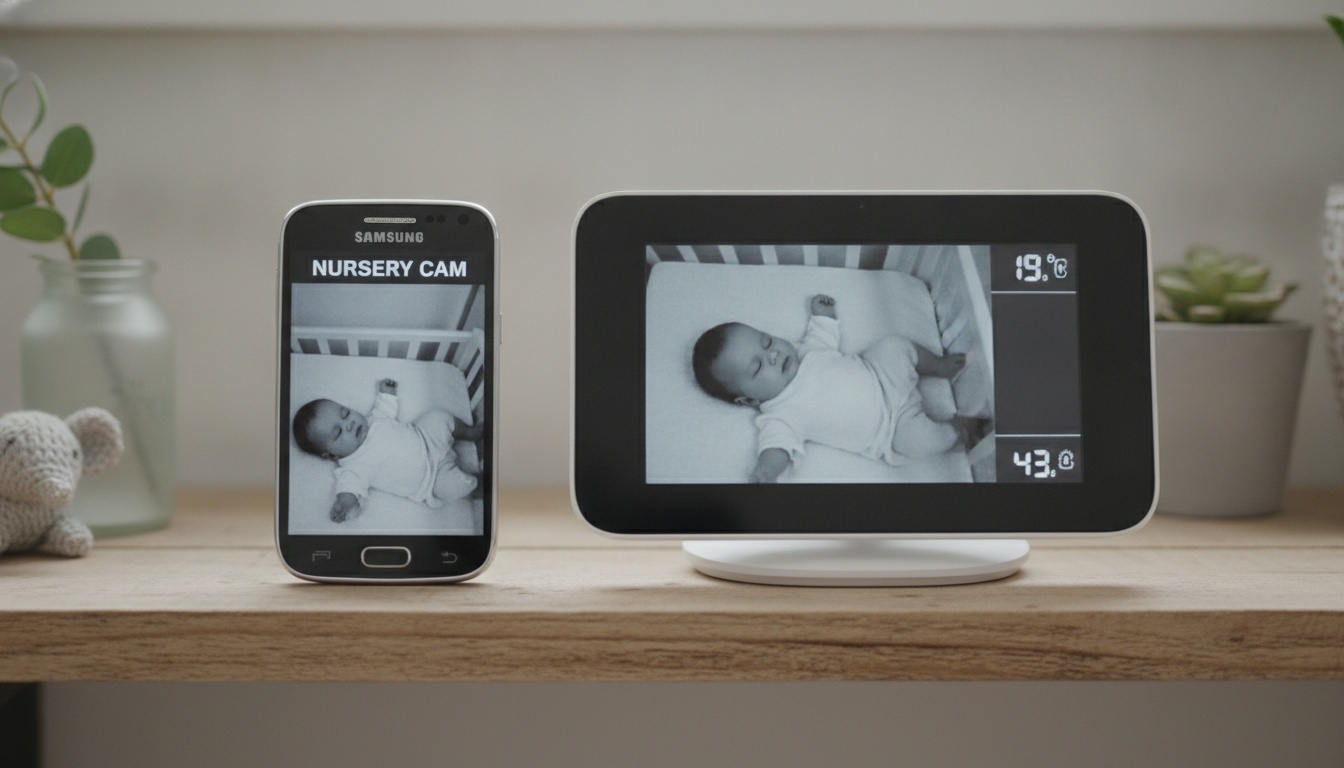
1. Why an Old Phone Costs Less and Works Faster Than a $150 Monitor
The math is hard to argue with. A budget dedicated monitor runs somewhere in the $80–$150 range. Mid-range options like the Infant Optics DXR-8 Pro climb higher. Premium AI monitors like Nanit Pro or Cubo Ai Plus add subscription costs on top of hardware. An old phone sitting in a drawer costs $0.
Setup is faster than most people expect. The interface is already familiar — no learning curve, no account creation required.
Real Limitations to Know
That said, there are real limitations worth knowing: old phones don't have IR hardware, so true night vision isn't happening without an external light source. WiFi dependency means a router reboot at 2 a.m. takes your monitor down with it. Continuous camera use on an older battery creates real heat. More on that in the battery section — it matters more than most guides admit.
| Setup Type | Upfront Cost | Monthly Cost | Night Vision |
|---|---|---|---|
| Old phone + free app | $0 | $0 | Workaround needed |
| Budget dedicated monitor | $80–$150 | $0 | Yes (IR) |
| Mid-range dedicated monitor | $150–$250 | $0–$5 | Yes (IR) |
| Premium AI monitor | $300–$400 | $5–$20 | Yes (IR) |
Prices subject to change; check current listings.
For most families in a WiFi-stable home, the DIY phone monitor works well. The edge cases where it doesn't — we'll cover those at the end.
2. What You Actually Need (and What You Don't)
Minimum specs that actually matter: Android 6.0 or newer, iOS 13 or newer, a working camera (front or rear — rear gives better resolution on most older phones), and a functional microphone. Test the mic before you commit. A scratchy or muffled mic on a three-year-old phone is more common than people realize.
The old phone does not need an active SIM card. WiFi-only operation works fine for every app in this guide.
Quick checklist before you download anything:
- Spare charger and cable for the nursery phone
- Phone mount or stand (more on positioning below)
- Both phones updated to current OS
- App downloaded and permissions granted
- Notifications enabled and tested on your viewing phone
- Router within reasonable signal range of the nursery
If you're using any cloud-based streaming option, you'll want at least 1 Mbps upload bandwidth on your home connection. Local-only apps skip that requirement — the stream never leaves your network.
A note on older operating systems: Android 6 phones are no longer receiving security patches. If the nursery phone is running an unsupported OS, it's worth weighing that exposure — especially for a device that's always-on and connected to your home network. A local-only app like IP Webcam reduces the attack surface, but it doesn't eliminate it.
3. 6 Apps Ranked: Which One Matches Your Privacy Needs (and Budget)
App choice determines almost everything: audio quality, whether your footage ever leaves your home, and whether you pay anything month to month. Here's what's actually worth installing.
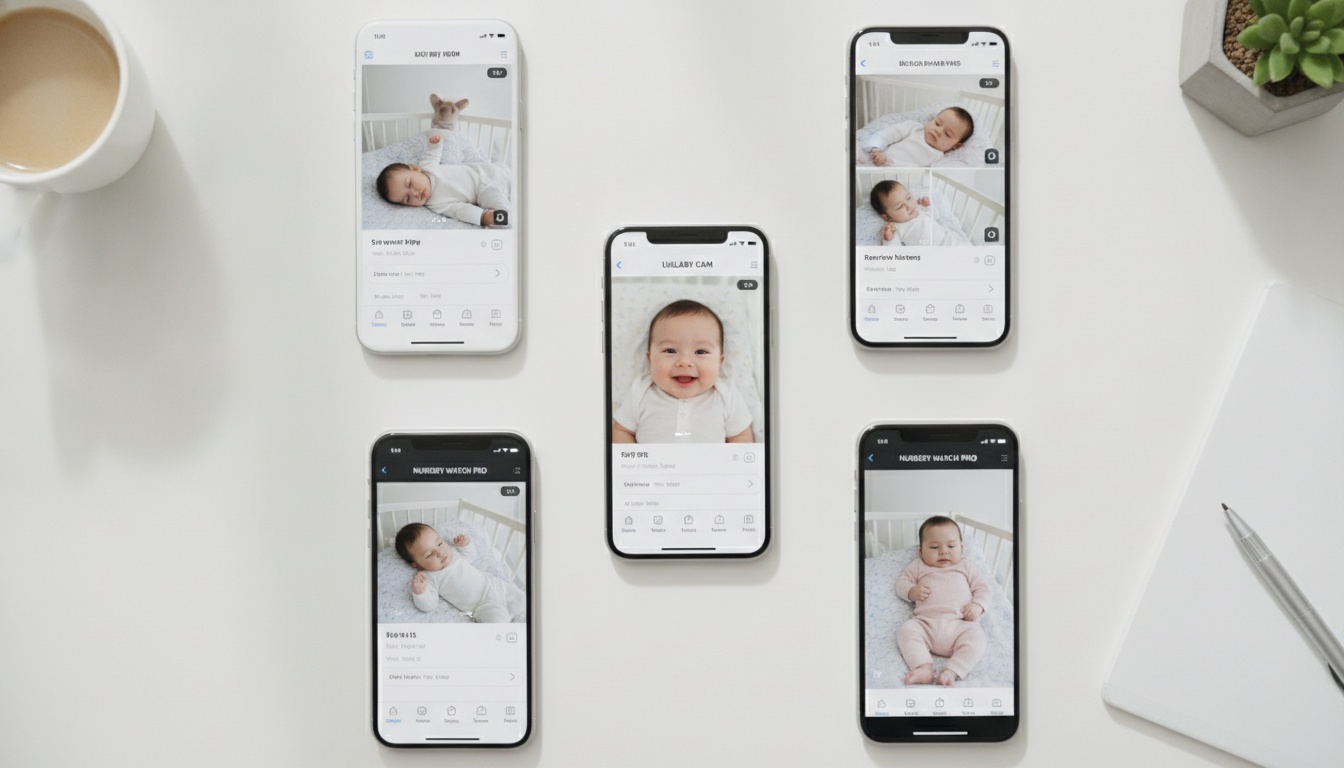
| App | Platform | Free Tier | Local or Cloud | Best For |
|---|---|---|---|---|
| IP Webcam | Android | Full (local) | Local only | Privacy-first users |
| Dormi | Android | 1 hr/day | Local only | Dedicated baby monitor UX |
| BabyCam | iOS + Android | Functional | Local + cloud | Easy cross-platform setup |
| Alfred | iOS + Android | Yes | Cloud-dependent | Dual baby + home security |
| Baby Monitor 3G | iOS + Android | No ($4.99) | Local only | iOS households, audio focus |
| BabyRadar | iOS | Yes (freemium) | On-device detection + optional cloud clips (90-day auto-delete) | Simplest setup, cry alerts with a crib photo |
App-by-App Breakdown
IP Webcam (Android)
Local network only, no account required. Your footage never leaves your home network — there's no third-party server involved. The stream goes from the nursery phone to your browser or companion app and nowhere else.
The interface is utilitarian to the point of being ugly. Push alerts aren't available on the free tier. But for parents who want strong privacy as a default and don't mind a learning curve, IP Webcam is the one I keep recommending. The zero-account setup is genuinely refreshing after dealing with some of the more onboarding-heavy alternatives.
Dormi (Android)
Dormi is the app I'd set up for my own kid. It's built specifically as a WiFi baby monitor, and the difference is obvious the moment you open it: push notifications on sound detection, a clean interface, local streaming with no cloud recordings.
The free tier limits you to one hour of monitoring per day. That's enough to evaluate it, but not enough for overnight use. Paid access is reasonable — check current pricing on their site, as it's changed periodically.
BabyCam (iOS and Android)
Cross-platform and easy to set up. The free tier handles basic real-time monitoring; motion alerts require the premium version.
BabyCam supports both local streaming and optional cloud backup, so you choose your privacy posture rather than having it chosen for you. That flexibility is genuinely useful if you're not sure yet which way you want to go.
Alfred (iOS and Android)
Alfred has maintained a strong rating across tens of millions of Google Play Store downloads — that kind of sustained performance over years of updates means the core functionality is reliable. Setup takes a couple of minutes, and it lets you turn off the screen on the nursery phone while the camera stays active — which helps with battery management.
The trade-off: Alfred is cloud-dependent. Your video stream routes through Alfred's servers, which is worth knowing before you point it at your child's crib. Check their privacy policy; footage in transit and at rest should be encrypted, but you're trusting a third party with continuous nursery footage.
Alfred also requires a light source in the room to see anything at night. No IR, no magic. Alfred's own documentation confirms this — a dim amber night light handles it fine.
Baby Monitor 3G (iOS and Android)
No free tier. The upfront price has varied over time — check current listings for the latest figure. In exchange, you get strong audio sensitivity, two-way talk, local streaming with no cloud dependency, and solid iOS optimization.
I've found the mic sensitivity on Baby Monitor 3G noticeably better than the others when the nursery has ambient noise. If you're in an all-Apple household and audio quality is your priority, this is the one to buy.
BabyRadar (iOS)
Smart cry detection that runs entirely on-device, with no camera positioning required to get started. When a cry is detected, the alert lands on your phone with a crib photo, and you can open an on-demand Watch Live stream when you want eyes on the crib; the camera stays off between uses. If you've read this far and the always-on camera angle, heat management, and WiFi troubleshooting feel like more friction than you want, this option is worth trying first.
BabyRadar is freemium — the app is free to download with a limited free tier; full features require a Pro subscription.
Recommendation matrix: Privacy is your top priority → IP Webcam or Dormi. Easiest setup with minimal fuss → BabyCam. Dual baby monitoring and home security use → Alfred. Best audio on iOS → Baby Monitor 3G. Want smart cry alerts with a crib photo and no fussy camera setup → BabyRadar.
4. Set Up Your Monitor in 10 Minutes: Step-by-Step for iOS and Android
Install your chosen app on the nursery phone, grant camera and microphone permissions, then open the companion app or browser on your viewing phone while both are on the same WiFi network. The nursery phone handles video streaming; you monitor from anywhere in the home.
Android Setup (Dormi or IP Webcam)
Step 1: Download the app on the old nursery phone. Create an account if the app requires one — Dormi does; IP Webcam doesn't, which is part of its appeal.
Step 2: Grant camera, microphone, and notification permissions when prompted. Don't skip microphone. Audio is the whole point at 3 a.m.
Step 3: Launch the app. You'll see a local IP address or room code on screen — write it down, you'll need it in about 30 seconds.
Step 4: Grab your main phone. Download the viewer app, enter that code, and you're paired. Took me under two minutes the first time.
Step 5: Test audio and video before the baby is in the room. Adjust camera angle now, not at midnight.
Step 6: Plug the nursery phone into a charger. Go into Developer Options and enable "Stay Awake While Charging" — otherwise the screen sleeps and some apps throttle the camera feed.
Android 15 has made background process management more aggressive than previous versions. If you upgraded the nursery phone recently, expect to revisit the battery whitelist step — more on that in the troubleshooting section.
iOS Setup (BabyCam or Baby Monitor 3G)
Steps 1–3 mirror the Android flow, with one difference: iOS permission prompts are more explicit and appear one at a time. Don't dismiss them.
For BabyCam, both phones can use different Apple IDs — pairing happens via room code. Baby Monitor 3G works similarly.
Disable auto-lock on the nursery phone under Settings → Display and Brightness. Set it to "Never" while it's plugged in.
One counterintuitive note: turn Low Power Mode off on the nursery phone. It throttles CPU and camera performance in ways that degrade stream quality.
Phone Mounting and Positioning
Mount the nursery phone 1–1.5 meters above the crib, angled downward. That height gives you a full view of the sleep area without distorting the image the way extreme angles do.
Mount options that work: the Lamicall T-Stand (check current pricing on Amazon) on a dresser, a flexible tripod on a shelf, or an adhesive phone holder on the wall. Crib clip mounts exist — check weight ratings carefully before trusting one.
Route the charging cable along the wall using adhesive cable clips, and keep all cords well away from the crib. This isn't optional. No cable should be reachable from the mattress.
Smart Home Integration
If you're running Google Home or Amazon Alexa, Alfred and IP Webcam both have workarounds for casting the feed to a smart display. It's not plug-and-play, but it works. Alfred's Chromecast support is the most straightforward path if you have a Nest Hub in the kitchen and want passive visibility while you're making coffee. IP Webcam can cast via a third-party app like TinyCam Monitor, which adds a step but keeps everything local.
5. The Safety Questions Every Parent Should Ask (and How to Answer Them)
Is It Safe to Use an Old Phone as a Baby Monitor?
Local-only apps (IP Webcam, Dormi, Baby Monitor 3G) keep footage entirely within your home network — meaningfully lower exposure than cloud-dependent options. Use WPA2/WPA3 WiFi, change your router's default admin password, keep both phones updated, and disable remote access if you don't need it.
The deeper question with cloud apps isn't whether footage is encrypted in transit — it's what happens to it at rest, and what the retention policy says after you stop paying. Under COPPA, apps directed at children under 13 face strict data collection rules. The FTC publishes guidance on children's data collection that's worth reading before you hand months of nursery footage to a platform you haven't researched.
Practical steps that actually matter: check your router settings — many routers still default to older protocols. Change the default admin password. Keep both phones' operating systems updated. Disable remote access features in the monitoring app if you don't specifically need them.
How Do You Manage Battery Heat for Overnight Monitoring?
Inspect the battery for swelling before overnight use — a bulged battery is a fire risk, full stop. Remove the phone case to dissipate heat, use a standard 5W charger (not fast charging), and consider a smart plug timer (the Kasa EP25 or similar) if the phone runs warm during extended use.
Most setup guides don't mention this, and it's the one thing that actually matters for overnight use: continuous camera plus WiFi radio on an older phone generates real heat, and heat on a degraded lithium battery is a real risk. Seriously. Don't skip this.
If the battery is bulging even slightly, do not use it. No cost saving justifies that risk. For phones with healthy batteries: the counterintuitive part is that fast chargers make the heat problem worse. A standard 5W charger generates less heat, and you're not trying to charge quickly anyway — you're trying to run the phone stably for eight hours.
Can Old Phones Handle Night Vision and Audio Quality?
Old phones have no IR hardware — true night vision isn't possible regardless of app. A 2–5 lumen amber night light in the nursery solves this without disrupting sleep. Two-way audio works on all four recommended apps; check the microphone condition on older devices before relying on it.
The American Academy of Pediatrics recommends keeping the sleep environment dark. Amber-spectrum light at low intensity is the least disruptive option if you need camera visibility. Alfred's documentation confirms a light source is required — this isn't a workaround, it's the intended setup.
Two-way audio works on Dormi, BabyCam, Baby Monitor 3G, and Alfred. Check your nursery phone's microphone condition before relying on it; older mics pick up more ambient noise and compression artifacts than newer hardware.
6. 3 Other Uses: Pet Cameras, Elder Care, and Home Security
Pet monitoring is the obvious second use. Alfred is particularly suited here — motion-triggered alerts mean you're not watching a static feed all day, just getting notified when the dog is doing something he shouldn't be.
Elderly parent check-ins are a less-discussed application that genuinely works. Position a phone in a living room or kitchen; a family member views the feed from another location. It's a lower-friction alternative to commercial systems that require accounts, subscriptions, and data sharing with companies your parents have never heard of.
Home security is where IP Webcam and Alfred overlap — motion detection for a front door, garage, or package drop area. One old phone can rotate between these roles across different seasons or needs.
A legal note on nanny cams: audio recording laws vary by state and country. Some jurisdictions require all parties to consent to audio recording. Check your state's wiretapping statute — a quick search for "[your state] two-party consent recording law" will tell you whether audio monitoring without disclosure is legal where you live. If you're using this as a caregiver monitoring setup, disclose it. Both for legal protection and basic professional courtesy.
7. Troubleshooting and When to Upgrade to a Dedicated Monitor
Most problems with DIY phone monitors come down to three things: WiFi band conflicts, storage running low on the nursery phone, or Android's battery optimization killing the background process. Start there. If none of those fixes work — or if your situation has specific requirements the DIY approach can't meet — the second half of this section covers when a dedicated monitor is the right call.
Common Connectivity Issues
"Can't connect" is the most common complaint, and the cause is almost always the same: the two phones are on different WiFi bands. Modern routers broadcast both 2.4GHz and 5GHz under the same network name, and phones pick whichever they prefer. Force both phones to the same band in your router's admin settings.
App crashes on the nursery phone are almost always a storage problem. Old phones fill up with cached junk faster than you'd expect — clear the app cache first, then check how much storage is actually free. Under 1GB available? That's your culprit.
Lag and buffering: drop the stream resolution in the app settings first. If that doesn't fix it, the problem is signal strength — add a WiFi extender or move the router closer.
Notifications not arriving on Android: this is Android's battery optimization killing the background process. Go into Battery settings, find the monitor app, and set it to "Unrestricted" or whitelist it. Android 15 is more aggressive about this than previous versions. If you upgraded the nursery phone recently, expect to redo this step even if you did it before.
When a Dedicated Baby Monitor Actually Makes More Sense
The DIY setup has real limits. If your nursery has poor WiFi signal and you're not willing to run an extender, a DECT-radio dedicated monitor sidesteps the problem entirely. It doesn't use your home network at all.
If you need true IR night vision without managing a night light, dedicated monitors have it built in. If the old phone's battery is degraded or swollen, the safety risk outweighs every dollar you'd save. Buy a dedicated monitor and move on.
Split-screen monitoring of two rooms simultaneously is genuinely difficult to set up on repurposed phones. Dedicated monitors with multi-camera support handle it cleanly.
Dedicated monitors also include features that no app replicates well: temperature and humidity sensors in the nursery, sleep tracking analytics, and purpose-built hardware that doesn't depend on app updates or OS compatibility. Those aren't reasons to spend $400 automatically — but they're real features that solve real problems for some families.
The DIY phone monitor is a solid solution for most families in a stable WiFi home. It's not a compromise. It just has specific failure modes, and knowing them in advance is the difference between a setup that runs smoothly for a year and one that fails you at 2 a.m.
---
Want the simplest option? If you've read this far and the camera setup, heat management, and WiFi troubleshooting feel like more work than you signed up for, BabyRadar is worth a look. Cry detection runs on-device on your spare iPhone, each cry alert arrives with a crib photo, and you can watch live from any room over an encrypted connection between your paired devices. Free to try; you'll know in 60 seconds whether it fits your setup.
---
8. Key Takeaways
- An old phone as a DIY baby monitor costs $0 upfront and takes under ten minutes to set up using apps like Dormi, IP Webcam, BabyCam, or Alfred
- Local-only apps (IP Webcam, Dormi) never send footage outside your home network — lower exposure than cloud-dependent alternatives
- Inspect the old phone's battery before overnight use; a swollen battery is a fire risk that no cost saving justifies
- True IR night vision isn't possible on old phones — a 2–5 lumen amber night light in the nursery solves the problem without disrupting sleep
- Android users: whitelist the monitor app in battery optimization settings or notifications will stop arriving; this is more aggressive on Android 15
- Use a standard 5W charger for overnight nursery duty — fast chargers generate more heat on an always-on device
- Upgrade to a dedicated monitor if your WiFi is unreliable, the nursery has poor signal, or you need multi-room monitoring without configuration headaches
Last tested: mid-2026.