
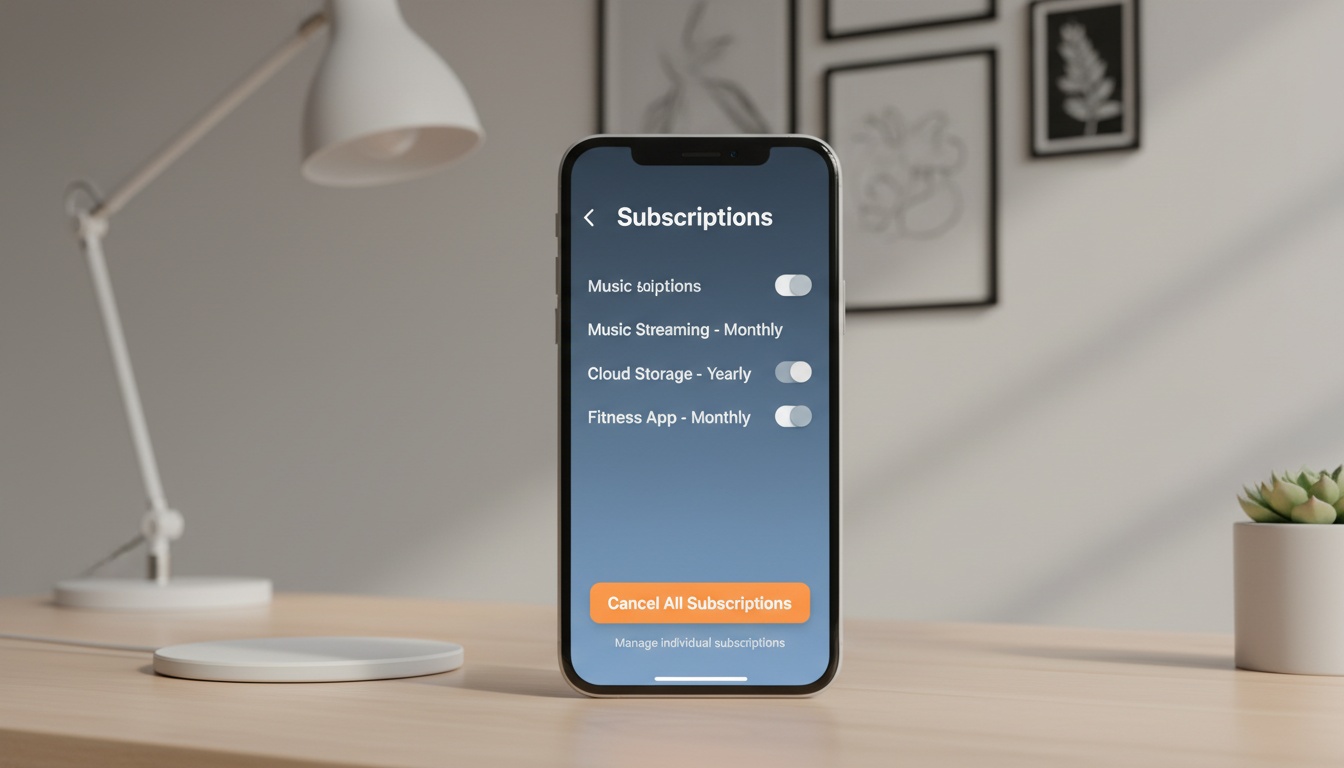
1. How to Cancel Your Nanit Subscription (Step-by-Step)
According to Nanit's official documentation, you have two primary ways to stop paying.
Method 1: Cancel via Nanit Website
- Go to nanit.com and log in.
- Click Settings.
- Select Subscription.
- Click Cancel Plan.
- Check your email for a confirmation.
Method 2: Cancel via App
- Open the Nanit app on your phone.
- Tap the Account tab.
- Choose Manage Subscription.
- Press Cancel.
- Save the confirmation screen.
One thing that trips up almost everyone: if you signed up through the App Store or Google Play, the cancel button on Nanit's website simply won't appear. It's not a bug. Apple and Google control that billing relationship, not Nanit. You must go into your iOS Settings or Google Play profile to cancel recurring charges directly.
2. Before You Cancel: Smart Alternatives to Keep Monitoring (and Save Money)
That said, many parents hit the cancel button out of pure frustration with the monthly pricing. You should evaluate a few alternatives before cutting off access.
Is Downgrading a Better Option?
But are you actually using the sleep analytics? If you're on Insights+, downgrading to a lower-tier plan may save you money each month. You may keep essential sleep tracking and video history without the personalized coaching tips you might not be using — though exact features per tier can change, so verify current plan details at nanit.com before deciding.
The free tier may still give you live video and motion alerts — check nanit.com for the current feature breakdown, as plan inclusions can change.
What You Lose at Each Tier
(Prices and features subject to change — verify current pricing and plan details at nanit.com) | Plan | Monthly Cost | Key Features Lost at Cancellation | |---|---|---| | Insights+ | varies | Personalized sleep coaching, multi-cam support | | Insights | varies | Sleep tracking, video history, breathing motion | | Free Tier | $0 | All historical data and analytics |
Alternatives
Still, sometimes you just want to switch systems entirely. If you want to repurpose an old iPhone instead of buying expensive new hardware, there are freemium baby monitor apps worth exploring for your nursery. We cover the top-rated options in our [INTERNAL_LINK: "best free baby monitor apps for old iPhones"] guide.
BabyRadar is one option with a free tier for cry-notify alerts. Its Pro tier may add live video streaming and event photo snapshots — check the app listing for current features and pricing. [Try BabyRadar free →]
A quieter night starts with the iPhone in your drawer. BabyRadar turns a spare iPhone into a full baby monitor (cry alerts, event photo snapshots, and live video) with a genuinely free tier. Pro unlocks live listen, video, and photos on trigger. You don't have to buy any hardware or a $300 starter kit.
3. Nanit's Refund & Billing Policy: What You Need to Know Before You Cancel
Based on Nanit's published refund policy, monthly and annual plans are handled very differently — verify the current policy at support.nanit.com before canceling, as terms can change.
Monthly Plans
The catch is, monthly subscribers almost never get prorated refunds. Ever. Your access just runs out at the end of the billing period — no partial credit, no exceptions I've seen.
Annual Plans
On the flip side, for annual plans, you may have a window from the initial charge to request a prorated refund — check Nanit's current refund policy at support.nanit.com for the exact terms, as these can change. You own the year.
Screenshot your final screen the moment you submit. You'll need that exact date if billing disputes come up later.
Even after cancellation, Nanit's charge may appear on your next credit card statement if your billing date falls within the current cycle. The charge description typically shows as NANIT INC or *NANITSUBSCRIPTION. Allow one to two full billing cycles before flagging it as a bank error.
If you're canceling from outside the US, your refund rights may be stronger. EU residents may have additional protections for digital subscriptions under EU consumer protection law — contact Nanit support and reference your local regulations explicitly for guidance.
4. Protect Your Memories: What Happens to Your Nanit Data After Cancellation
Download your video clips before your billing period ends. After that, cloud access cuts off and historical sleep data is permanently deleted.
Video Footage
Once your billing period officially concludes, cloud access stops. Any historical sleep data tied to your Nanit subscription plans vanishes forever from the servers. Keep in mind that a subscription cancellation differs entirely from a Nanit account deletion. Canceling just stops the money.
Account Deletion
To fully delete your Nanit account rather than just canceling the billing, go to nanit.com/settings. Scroll down to the 'Account' section and select 'Delete Account.' You'll receive a confirmation email.
This is irreversible. Do it only after you've downloaded all footage and confirmed you won't sell the camera to someone who'd want a fresh setup. For more details, check our [INTERNAL_LINK: "how Nanit stores and deletes your data"] guide.
5. Solved: Common Nanit Cancellation Issues (Missing Button? Still Charged?)
Things don't always go smoothly when cutting off a subscription.
Check your spam folder.
- No cancel button visible → You subscribed through Apple or Google. Cancel in iOS Settings or Google Play instead.
- Missing confirmation email → If it's not in spam, screenshot your cancellation screen and contact support.
- Charged after cancelling → Compare dates. A cancellation on the 14th can miss a cycle that billed on the 13th. Wait one full billing cycle before disputing.
- Can't log in → Reset your password first. If the account remains active after several days, you'll need to contact Nanit support directly to intervene.
6. Changed Your Mind? How to Reactivate Your Nanit Plan & Get Support
Reactivation Steps
Simply log back into the mobile app to select a brand new plan for your camera if you decide to reactivate.
Getting Support
If your reactivated plan fails to load premium features within 24 hours, reach out for help. Nanit's support team is reachable at support.nanit.com.
Their live chat response times and business hours vary — check support.nanit.com for current availability. For billing disputes specifically, email support tends to create a paper trail. That documentation is useful if you need to dispute a charge with your bank.
7. Key Takeaways
- Download all your saved clips before your current billing cycle ends.
- Canceling via the app store is mandatory if you bought the plan through Apple or Google.
- The free tier may still give you live video and motion alerts without paying monthly fees — verify current free tier features at nanit.com.
- Consider freemium alternatives like BabyRadar if you want to reuse old iPhones instead of buying new hardware.