
1. Can you use two iPhones as a baby monitor?
Yes, running an app like BabyRadar or Baby Monitor 3G on both devices takes under five minutes to configure. It costs nothing. You simply repurpose old iPhone hardware you already own.
You put one handset in the nursery as the camera and keep the second device with you as the viewer. While the setup is fast, maintaining a reliable connection requires specific network settings.
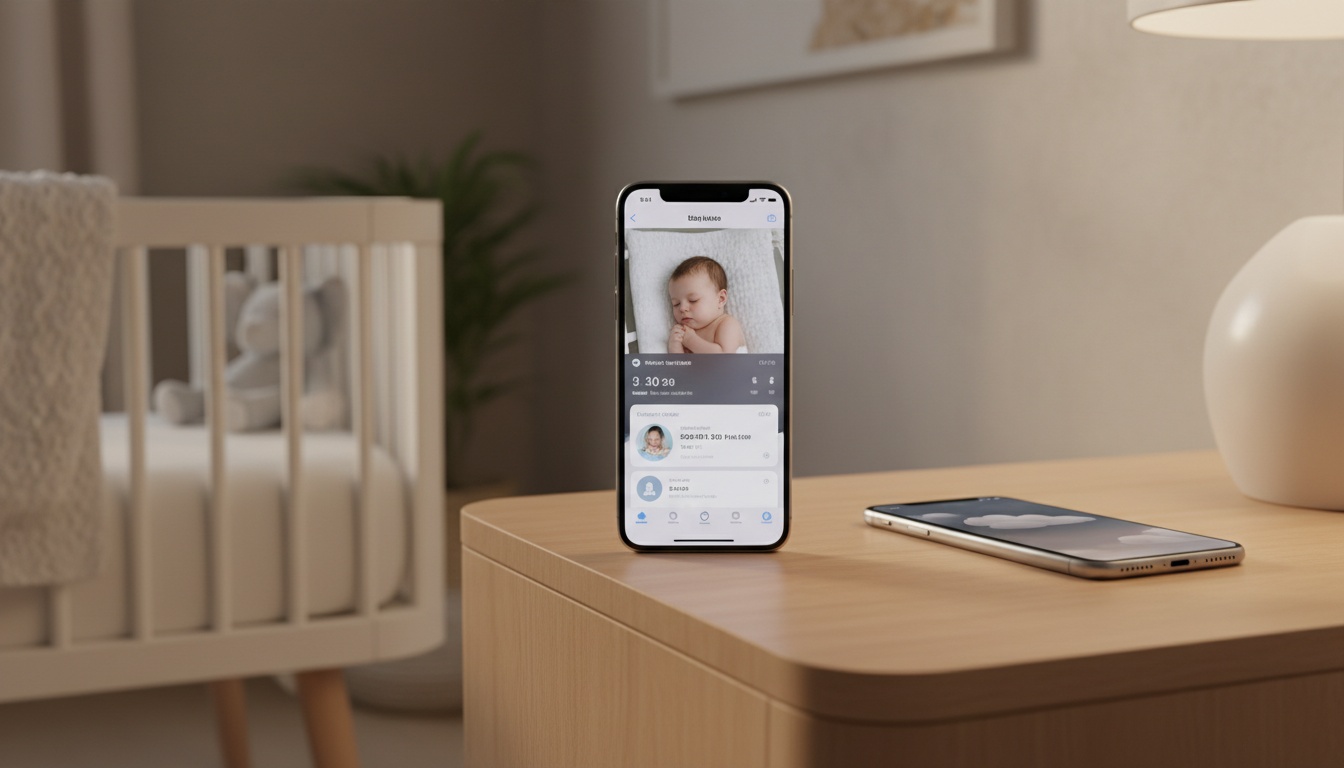
2. What a Two-iPhone Baby Monitor Is
A two-iPhone setup transforms existing Apple hardware into a fully networked video monitor. Any iPhone running a recent iOS version works. Check App Store compatibility for your specific app, since minimum requirements change. This includes older models like the iPhone 8 or SE, which are common drawer-dwellers in households that upgraded recently.
You stream audio and video over your local network or cellular connection.
After three weeks of overnight testing on an iPhone 12 and iPhone SE 2022, the biggest surprise wasn't video quality. The mic picked up subtle sounds I hadn't noticed with a dedicated monitor.
Works at Home and on the Road
Apps like BabyRadar route through a cellular relay rather than the hotel's local network, bypassing the port restrictions that block direct device-to-device connections. This makes travel monitoring much simpler.
3. Step-by-Step Setup: Turning Two iPhones Into a Baby Monitor
Before starting your setup, gather two phones running modern iOS alongside extra-long charging cables. Mount the camera exactly three feet above the mattress. Using an iPhone 8 requires higher placement on the wall than an iPhone 11 or 12. Newer ultra-wide lenses capture the entire crib easily from closer distances.
The American Academy of Pediatrics' safe sleep guidelines recommend that no cords, wires, or charging cables should ever be within reach of the infant's sleep area (aap.org).
FaceTime as a Baby Monitor — Quick-Start Steps
FaceTime setups require zero downloads but demand precise configuration. Set a passcode. This prevents accidental screen swipes during the middle of the night.
Step 1: Navigate to Settings, Accessibility, Touch, Call Audio Routing, and then enable Auto-Answer Calls on the nursery device. Recent iOS versions allow you to set the auto-answer delay to as little as two seconds — check your current iOS version's Accessibility settings for the exact options available on your device.
Step 2: Reduce brightness to zero via Settings and Display & Brightness. The AAP recommends keeping the nursery as dark as possible during sleep — a bright monitor screen defeats that.
Step 3: Enable Guided Access via the Settings menu and set a secure passcode.
Step 4: Initiate a FaceTime video call from the parent device.
Step 5: Once connected, triple-click the nursery iPhone's side button to lock it into FaceTime via Guided Access.
Continuous streaming destroys battery life within hours. You must plug the nursery unit into power before leaving the room.
Using a Free Baby Monitor App
Downloading a dedicated app provides better features than standard video calling. You must install the same software on both devices and sign in to link them securely.
This treats the nursery device like an iPhone security camera. The exception is HomeKit: that route requires an active iCloud subscription and an Apple TV as a hub, which adds cost and complexity most parents don't need.
But which application actually works best overnight? [INTERNAL_LINK anchor="best iPhone baby monitor apps" -> /best-baby-monitor-apps]
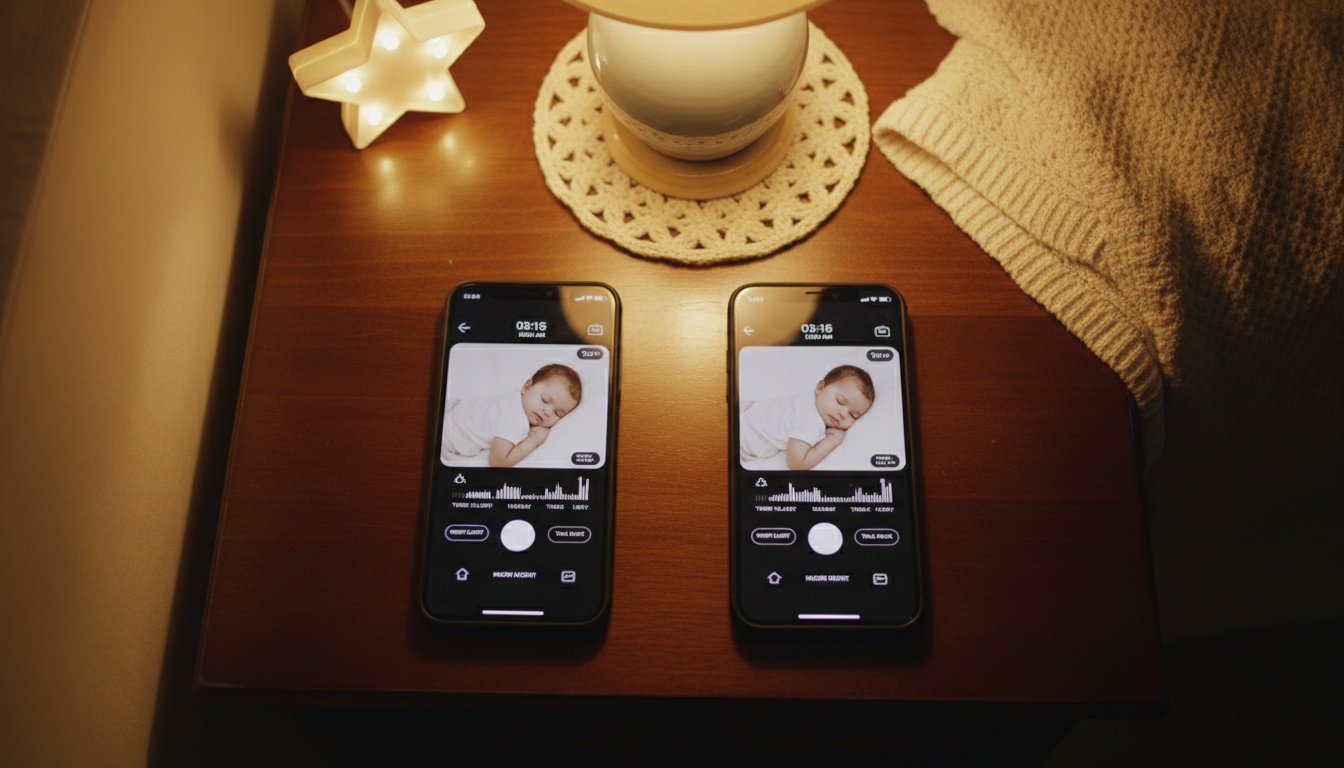
4. Best Free and Paid Apps for Two-iPhone Baby Monitoring
Finding the right software depends heavily on your budget and required features.
| App Name | Key Features | Network |
|---|---|---|
| BabyRadar | Cry alerts, 90-day cloud events (Freemium: $0 to $4.99/mo) | Encrypted relay |
| Alfred | Motion alerts, night filter (Free or $3.99/mo) | Cloud |
| Baby Monitor 3G | Lullabies, low light monitoring ($4.99 one-time) | Local/Cellular |
| Nanit App | Sleep tracking (Free, requires hardware) | Cloud |
| Cloud Baby Monitor | Local WiFi streaming ($4.99 one-time) | Local |
Prices are subject to change; check the App Store for current regional pricing.
BabyRadar: Best Free Option
BabyRadar offers a freemium model where the zero-dollar tier covers cry alerts and a 90-day event history. BabyRadar Pro ($4.99/month) adds continuous live video, automated photo snapshots when sound triggers, and audio playback, which many parents find valuable for comprehensive monitoring.
Competitors like Nanit and Cubo are good products with valid trade-offs. They require expensive hardware purchases alongside recurring monthly cloud subscription plans that add up quickly over three years. BabyRadar simply uses your existing hardware over an encrypted relay — no new equipment, no $300 starter kit.
BabyRadar holds a 4.7-star rating on the App Store across thousands of reviews. If you want to start tonight without spending anything, download BabyRadar's free tier from the App Store — cry alerts and 90-day event history are included at no cost. [INTERNAL_LINK anchor="dedicated baby monitor reviews" -> /best-baby-monitors]
5. Privacy, Security, and Safety Considerations
Cloud camera breaches have made headlines repeatedly, pushing parental monitoring security up the priority list. Always use modern Wi-Fi encryption. You should enable two-factor authentication on all of your accounts immediately.
BabyRadar stores event photos and video clips in the cloud. These files are automatically deleted after 90 days, and this short retention period is a genuine feature for privacy-conscious parents.
Live streams pass securely through an encrypted relay.
6. Troubleshooting Common Issues and Optimizing Battery Life
Apple's Guided Access is your best tool for locking the nursery device overnight — Screen Time won't prevent accidental swipes the way Guided Access does.
- Audio drops out mid-stream: Close all background apps on the nursery iPhone before launching your monitor app.
- Video lags or freezes: Switch from 5GHz to 2.4GHz Wi-Fi; check that upload speed exceeds 5 Mbps.
- Battery drains overnight: Plug it in. Continuous video kills a full charge in under 3 hours.
- Screen activates accidentally: Enable Guided Access (triple-click side button) and set a passcode before leaving the room.
For reliable alerts and secure streaming, consider an app like BabyRadar, which sends disconnection alerts over cellular.
Minimum Network Requirements for Stable Monitoring
A reliable monitor setup requires solid bandwidth. Check your router. Your nursery device needs at least 5 Mbps of upload speed per camera stream to maintain clear video.
Use a 2.4GHz Wi-Fi band for better range through walls. You should switch to 5GHz only if the camera and viewer are in adjacent rooms.
If the Wi-Fi drops mid-night, apps like BabyRadar will push an immediate disconnection alert to the parent device over cellular data.
7. Two-iPhone Setup vs. Dedicated Baby Monitors: An Honest Comparison
| Criteria | Two-iPhone Setup | Dedicated Monitor |
|---|---|---|
| Setup complexity | Moderate | Low |
| Night vision | Software filter only | True IR night vision |
| Audio quality | Good (iPhone mic) | Purpose-built, often better |
| Range / connectivity | WiFi dependent | Often DECT (operates without a home network) |
| Battery / power | Must stay plugged in | Camera unit plugs in; parent unit is portable |
| Privacy | Varies by app | Varies by brand |
| Cost | $0 (existing hardware) | $150–$350 |
Dedicated monitor price range: $150–$350.
When the iPhone Setup Wins (and When It Doesn't)
For most parents using this as a temporary or travel solution, the two-iPhone setup wins on cost. However, if you need to buy a used iPhone for $150 to make this work, an Infant Optics DXR-8 Pro at $165 is the better buy.
If your nursery is more than 30 feet from your bedroom with two walls between you, a DECT-based monitor will outperform any Wi-Fi setup on reliability alone.
Smartphone cameras also lack true infrared night vision, meaning you will need at least a dim nightlight for usable video.
8. Multi-Room Monitoring with More Than Two iPhones
Expanding your basic setup to accommodate multiple children requires software that supports multi-room monitoring natively. [INTERNAL_LINK anchor="multi-room baby monitor guide" -> /multi-room-baby-monitor]
Parents can link a third device as an additional camera. The primary parent viewer application automatically splits the screen to show both live feeds simultaneously.
In practice, most home routers handle two simultaneous camera streams without issue; three or more cameras on a congested 2.4GHz band will start to stutter. Bandwidth is everything. If your video continuously stutters, upgrade your internet service plan.
A quieter night, starting with the iPhone in your drawer. BabyRadar turns a spare iPhone into a full baby monitor — cry alerts, event photo snapshots, and live video — with a genuinely free tier. Pro unlocks live listen, video, and photos on trigger. No hardware to buy, no $300 starter kit. [Download on the App Store]
9. Key Takeaways
- Use 2.4GHz WiFi for range through walls; switch to 5GHz only if camera and viewer are in adjacent rooms.
- Enable Guided Access (triple-click side button) to lock the nursery iPhone into your monitor app overnight.
- BabyRadar's free tier covers cry alerts and 90-day event history — sufficient for most parents without paying.
- Plug the nursery iPhone in before starting the stream; continuous video kills a full battery in under 3 hours.
- iPhone cameras lack true IR night vision — you'll need at least a 1–2 lux nightlight for usable video.
- The honest ceiling: This setup works well for 80% of parents. If your nursery is more than 30 feet from your bedroom through two walls, a DECT monitor will outperform any Wi-Fi solution — no app fixes physics.